 Voffo.ai
AI Video Editor
Describe a change to apply to a source video, with an optional reference image.
AI Video Editor Example
Edit Videos with Simple Text Instructions
Describe the changes you want in everyday language. Simply tell the AI what to modify, add or remove, and let it generate an edited version of your video.
Edit Prompt
Transform the animated source into a live-action visual style while preserving the scene composition.
Describe Your Changes
Use everyday language to explain what you want to add, remove or modify in your video.
Provide Visual References
Upload an optional reference image to help guide the appearance or style of your edit.
Generate a New Version
Let AI process your original footage according to your instructions and selected settings.
What Can You Change in a Video with AI?
See examples of removing an object, adding an element, replacing a subject and changing an existing video’s look. The clips illustrate editing techniques.
Remove Objects
The left clip shows a wooden trail sign; the right clip shows the same scene without it. This is a composited illustration. Prompt Example “Remove the wooden trail sign. Preserve the trees, path and camera movement.”
Add New Elements
Describe new visual elements you want to introduce into your footage. Prompt Example “Change the background to a snowy winter scene.”
Replace Existing Elements
Replace a person or another visual element with a text instruction. Prompt Example “Replace the girl with an old woman.”
Transform Visual Styles
Give existing footage a different visual appearance through descriptive prompts. Prompt Example “Transform the animated waiter and restaurant into a live-action poolside scene while preserving the cake-carrying motion.”
Guide Your Video Edits with Reference Images
Have a specific visual direction in mind? Upload a reference image alongside your video to help guide the appearance, style or details of your edited footage. This LitMedia example shows a matching original and edit. The middle image is a result frame illustrating the target look, not a supplied reference input.
Original Video
Animated restaurant scene: a waiter carries a cake.
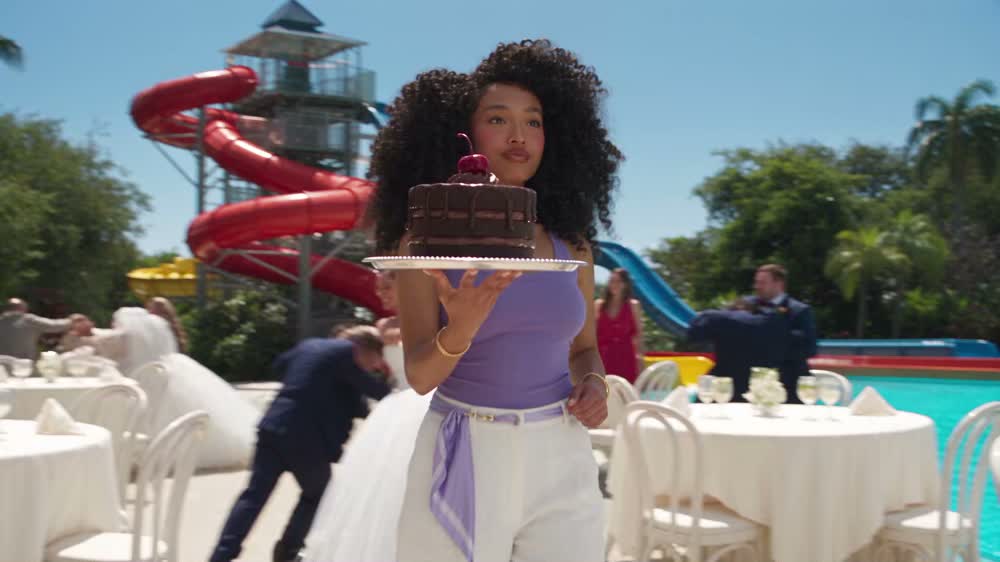
Reference Look
Illustrative result frame showing the target appearance, not the original reference input.
Edited Video
The corresponding live-action poolside edit follows the same cake-carrying motion.
Edit Prompt
Example instruction: Turn the animated restaurant scene into a live-action poolside scene. Preserve the cake-carrying action and camera movement.
What Can You Create with AI Video Editing?
Explore different ways to transform existing footage with AI-powered video editing.
Social Media Content
Give existing clips a fresh look for your social media posts and short-form content.
Product Marketing Videos
Compare a soft grade with a warmer, brighter look for the same watch showcase. The watch and box stay in place while the highlights become more prominent.
Fashion Video Editing
Experiment with clothing appearances and visual styles in fashion footage.
Creative Video Projects
Explore new visual directions by transforming the appearance of your original videos.
How to Edit Videos with AI
Transform your existing footage in three simple steps with Voffo.ai.
Upload Your Video
Upload the video you want to edit. Your original footage will serve as the starting point for AI-powered editing.
Describe Your Edits
Enter a text prompt explaining what you want to change. You can also upload an optional reference image to guide the result. Prompt Example: Change the person's jacket to a black leather jacket.
Generate Your Edited Video
Choose your output resolution and audio option, then start generating. Preview and download your edited video when processing is complete. Resolution: 720p / 1080p Audio: Auto / Original
AI Video Editor FAQs
What Is an AI Video Editor?
An AI video editor uses text instructions and optional visual references to generate a modified version of an existing video.
How Does AI Video Editing with Text Prompts Work?
Upload your source clip and describe the changes you want. The model processes the footage with your prompt and selected settings to generate a new version.
Can I Edit an Existing Video with AI?
Yes. This tool starts with an uploaded video, rather than generating a video from text alone.
What Types of Changes Can I Make to a Video with AI?
You can request object removal, added visual elements, clothing or object changes, and different visual styles. Results depend on the footage and prompt.
Can I Upload a Reference Image to Guide Video Editing?
Yes. A reference image is optional and can help guide appearance, clothing, style or details. Explain in your prompt how the image should influence the edit.
Can AI Preserve the Original Content and Motion of My Video?
Describe what should stay consistent, such as the person, background and camera movement. AI edits may still alter details; review the result before using it.
What Output Resolutions Does the AI Video Editor Support?
The current editor offers 720p and 1080p output. Choose the resolution in the tool before submitting your video.
What Is the Difference Between AI Video Editing and Traditional Video Editing?
AI editing generates visual changes from instructions. Traditional editing gives direct control over cuts, timing, layers and individual frames; the two workflows can complement each other.